
Kubla Monthly - August 2026
Hi Kubla Cubed User,
7.5 is here, bringing with it bug fixes and a new quality-of-life feature. More below, as well as a new CAD troubleshooting video and our workflow tip of the month.
Cubed 7.5
What's New?
Our development team are busy working on Kubla Cubed 2026, but we've managed to squeeze in a minor update to Kubla Cubed 2024: Update 7.5. Whilst this update has prioritised bug fixes and stability, we've also included a new feature based on user requests: Grouped Move.
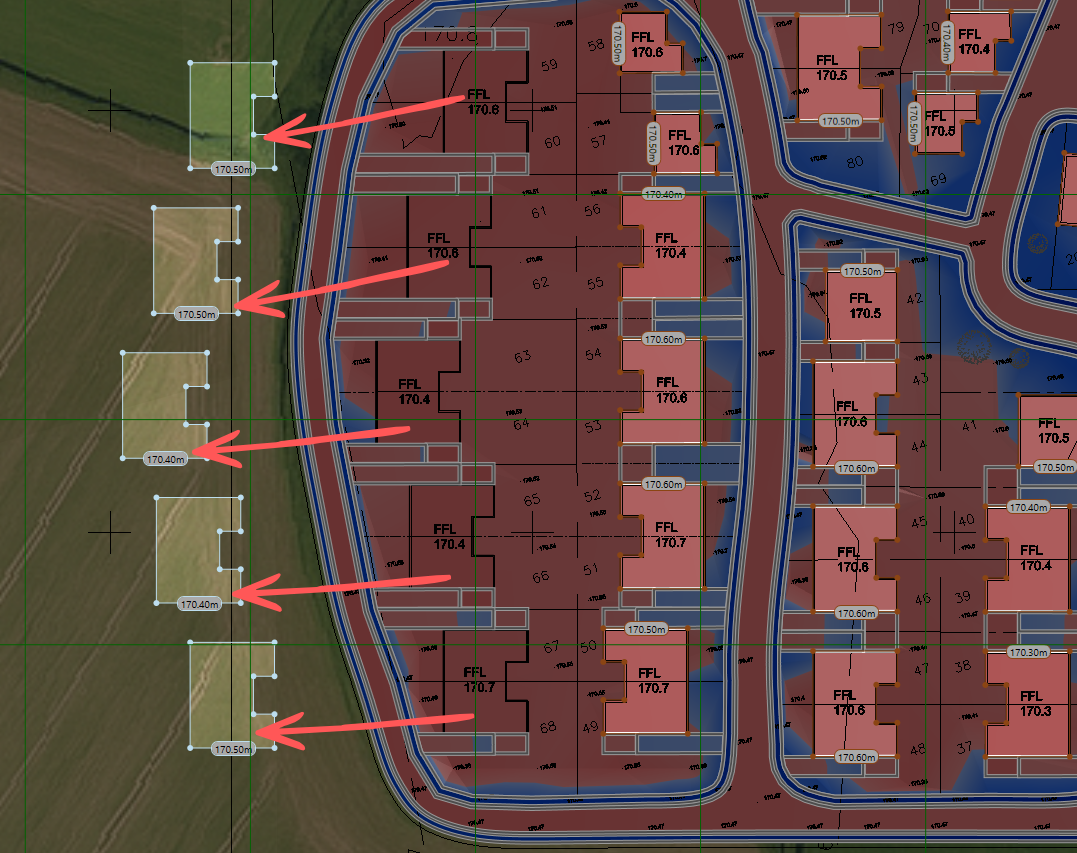
Grouped Move
What:
Elements will now be able to be moved as a collection.
Why:
This feature enhances how elements can be moved together,
reducing manual input.
How:
Click one element in the selection, hold Ctrl and select the
rest of the desired selection. Move the grouped selection by
dragging it with your cursor.
Phasing UI Improvements
We've also made quality-of-life improvements to Phasing UI.
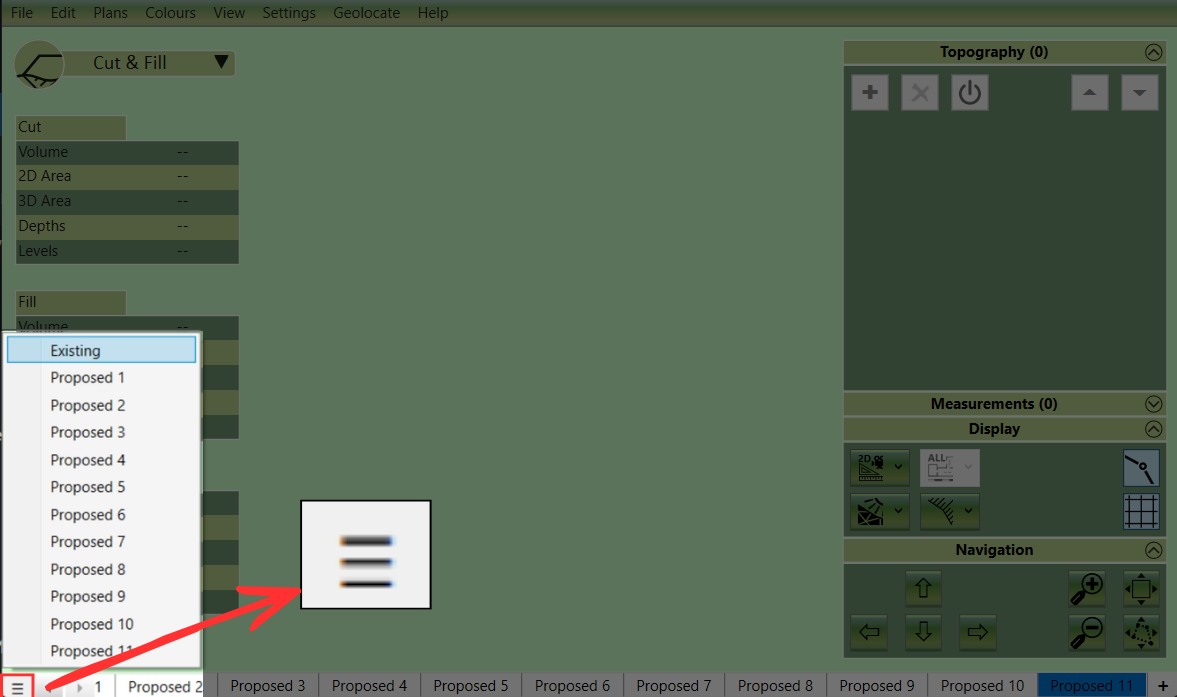
Upon reaching a certain amount of phase tabs, users will now be able to use the Phase Organiser to access phases from a dropdown menu instead of repeatedly clicking the left and right arrows.
New Video
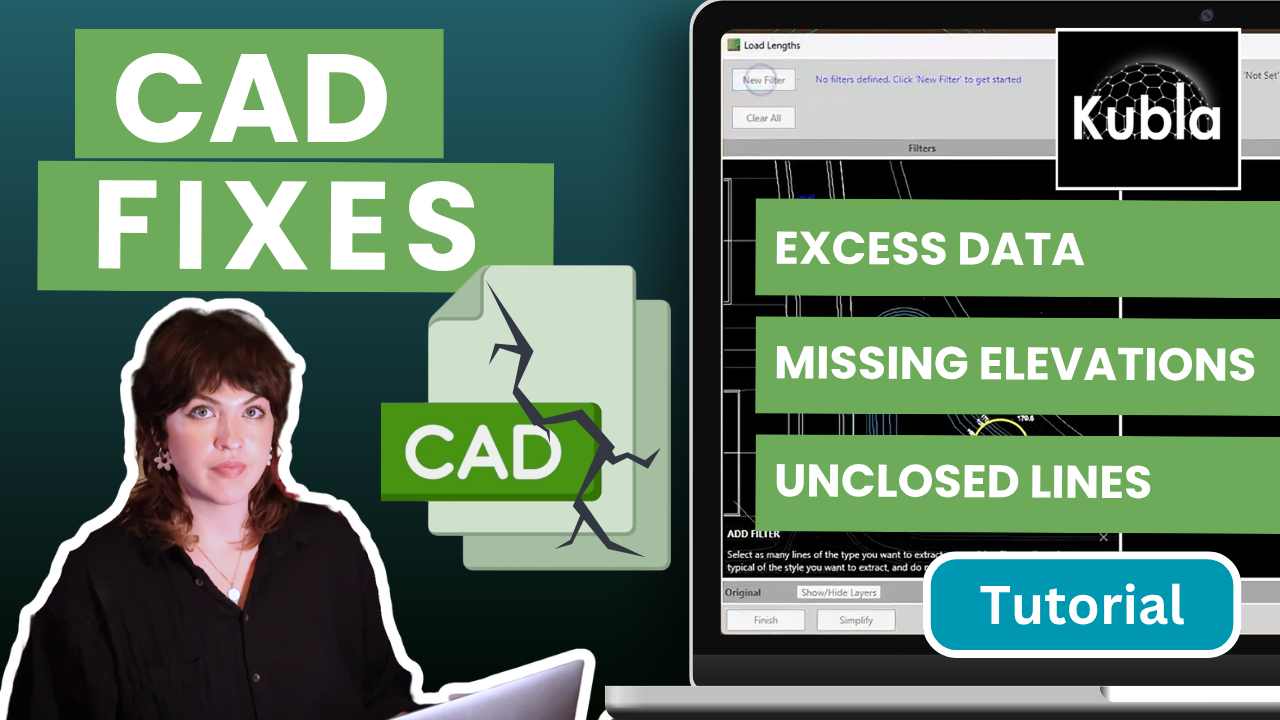
CAD Troubleshoot
CAD import is a quick and efficient option to get your data into Cubed, so it's useful to know how to tackle any potential complications.
Our new CAD Fixes tutorial covers solutions to problems such as unclosed outlines, missing elevations, breakline problems and more.
Available in video form over on YouTube, or you can find it in writing in our comprehensive CAD Import Guide.
Free Resources
Getting Started Guide
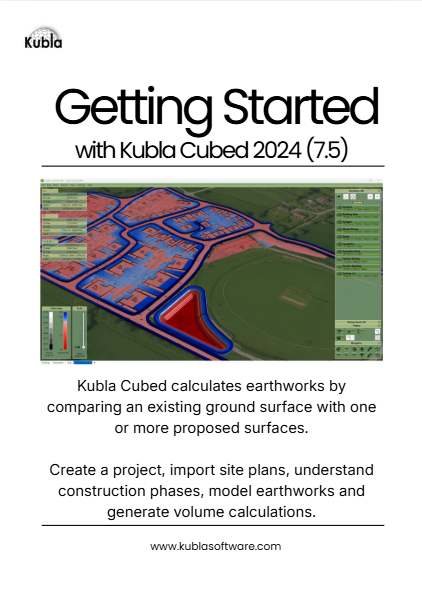
This month we released our Cubed Getting Started Guide, as part of our focus on providing users with a greater variety of learning materials.
With the aim of offering a condensed, beginner-friendly version of our comprehensive User Manual, the guide covers the basics of getting your first Cubed project up and running, from importing site plans to exporting reports.
Workflow Tip of the Month
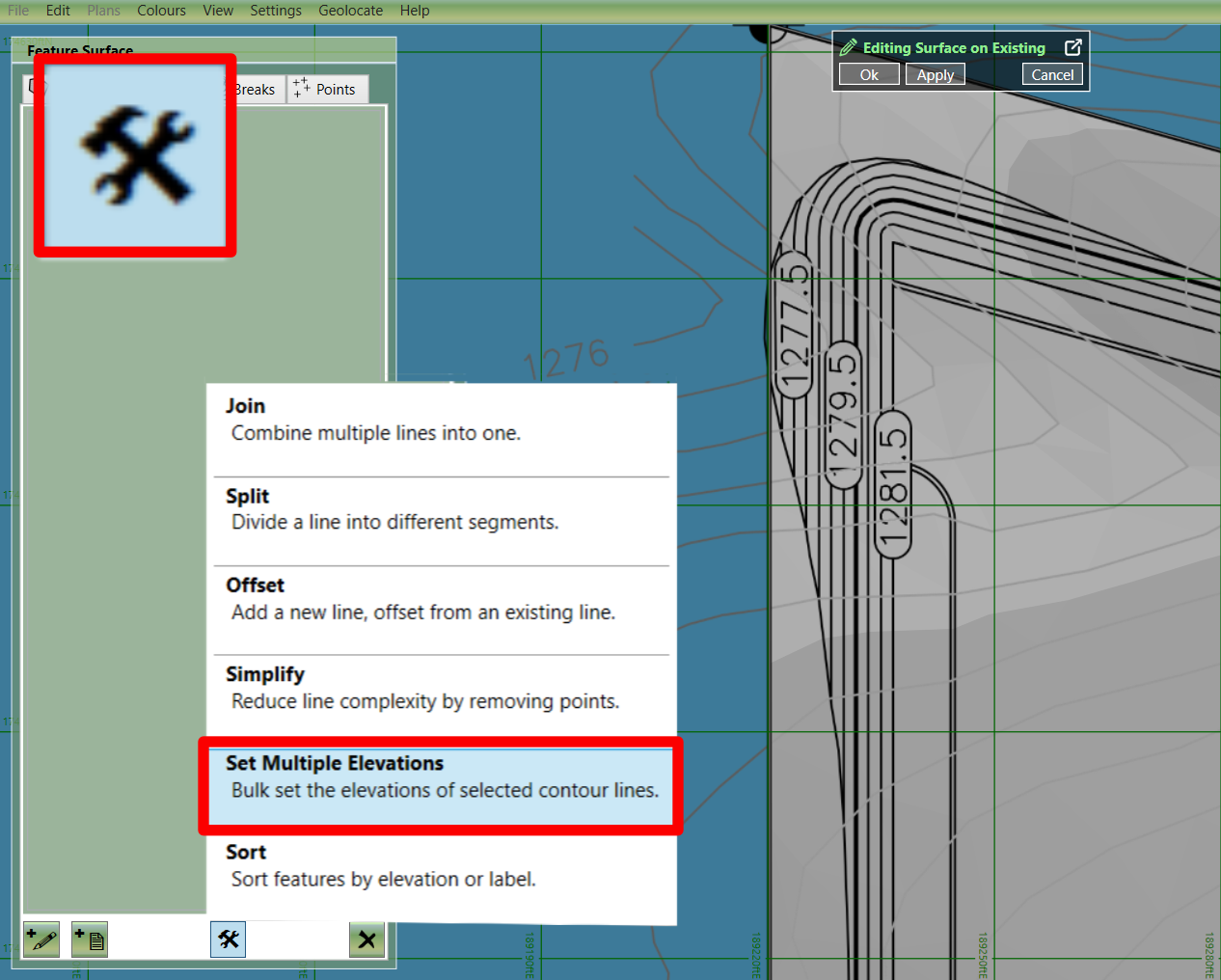
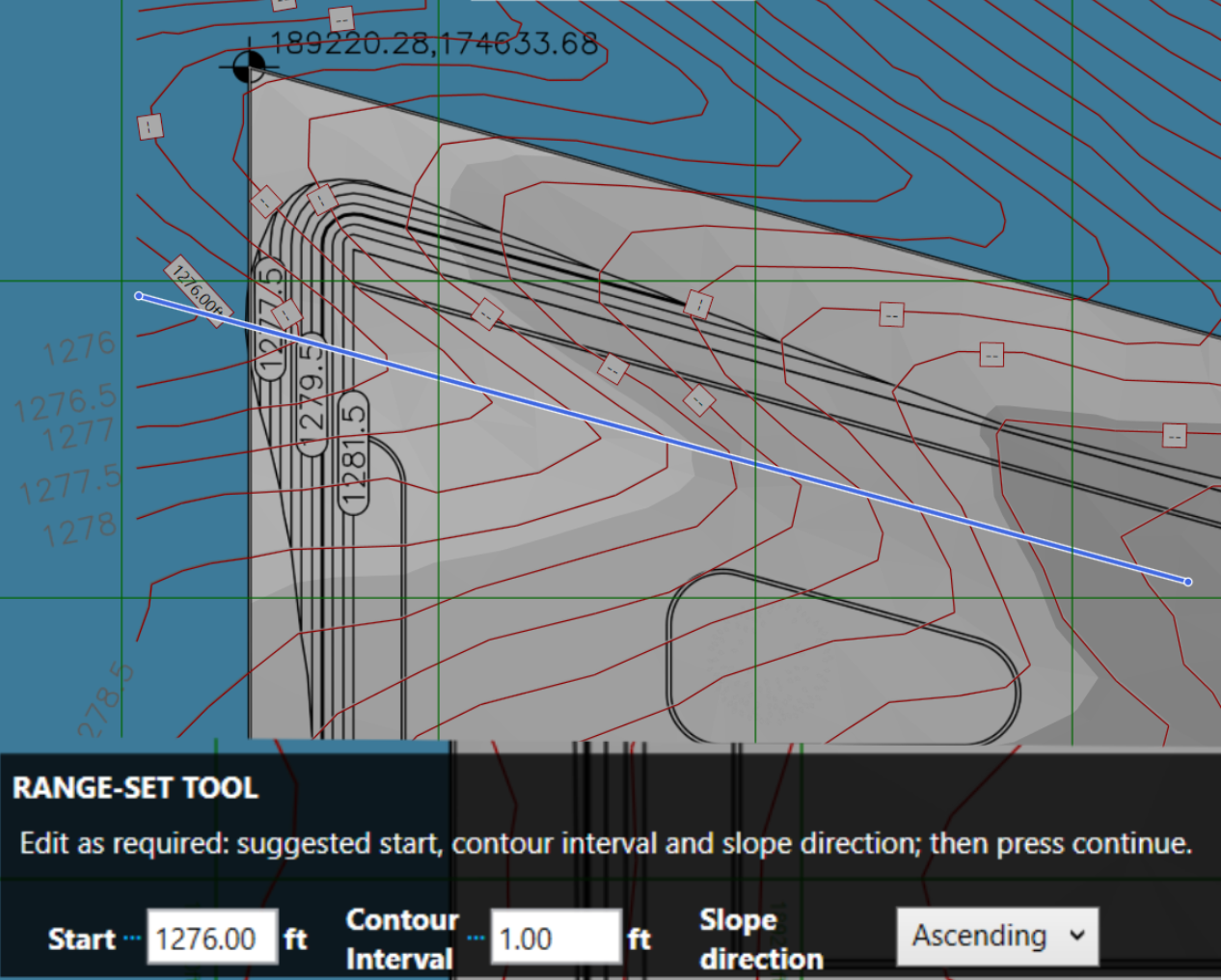
Set Multiple Elevations
When manually assigning contour values, you can use the Set Multiple Elevations tool to speed up the process.
- From the Tools menu, select Set Multiple Elevations.
- Left-click, then drag your cursor from the first contour, across the group of contours you want to assign values to. Right-click to end.
- Input the contour interval and whether it is ascending or descending.
- Tip: If the first two contours in the selection have existing values, the software will detect the contour interval automatically.
Behind the Scenes

Leah's Other Gig
When she's not working in Marketing, Leah is making music with her band scuss. Based in South West England, the band have just released their debut single, “Rapture”, which is out now. (Kubla theme song negotiations are ongoing.)
Thank you!
We hope you've enjoyed this month's newsletter. Have an interesting project completed with Kubla Cubed? Share it with us for a chance to be featured in our User Spotlight and inspire the rest of the Kubla community.
Your project could also help showcase your company by being shared across our website, newsletter and social media channels, helping others discover your work and expertise.
Any projects submitted will only be featured with your permission. We'll always contact you before publishing anything.
Share Your Project