Adding Points from a Data File
Once you have selected an excel or text file the following window will appear. In the case of an excel file, the 'File Format' section will not appear, as this is only used for defining text file formats.
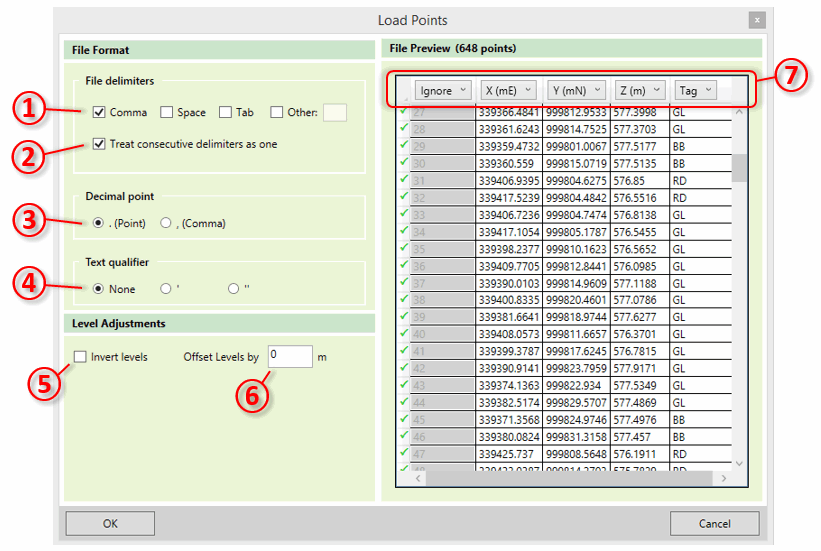
If you are using a text file it is necessary to define the file format with the controls on the left. In many cases the file will immediately show correctly in the previewer. However, if you have an unusual file format you may need to amend the details of the file format on the right side as follows:
- ① File delimiters Specify what character is used to delimit the fields in your file. Files are typically tab, comma or space delimited, but any character can be specified here by clicking Other and typing in the text box.
- ② Treat consecutive delimiters as one Specify whether several consecutive delimiters in a file line should be treated as one, or if these should be treated as several fields with empty values.
- ③ Decimal Point Specifies whether your file uses a point or a comma to denote a decimal point. This is used to deal with different conventions in different parts of the world.
- ④ Text Qualifier Specifies the character that is used on either side of a text field in the file, if your file contains text fields.
There are also some controls which can be used to adjust the levels (Z values) in the file:
- ⑤ Offset Levels by - If the points in your file are offset from the vertical datum you want to use then you can specify it here.
- ⑥ Invert Levels - Kubla Cubed uses upwards-positive convention for levels. If your file uses upwards-negative convention, then you can use this option to invert the values in your file so that they are suitable for Kubla Cubed. This option is mostly used for hydrographic surveys, which often report depths as positive values.
Finally, you must specify which columns in your file represent the X, Y, Z and Tag (if it contains tags) values for the data. This is done by clicking on the column header in the data preview ⑦ and selecting 'X', 'Y', 'Z' or 'Tag' from the drop-down. You can also specify 'Ignore' if that column contains data which is not relevant.

|
In the video Kubla Cubed Tutorial | Importing Point Files (.xyz, .csv, .xls) we look at importing point files to define both the existing and proposed terrain using a feature surface. |