Adding Features Manually
The process, once you have clicked on the + button to add a new feature manually, depends on the type of feature you have selected. In all cases, you draw the elements on the designer panel on the right of the screen.
- Outlines
When you choose to add an Outline, the following prompt will appear, providing two options to create outlines.
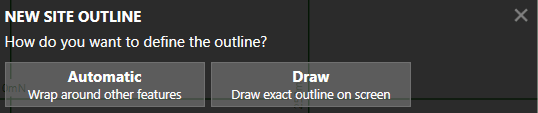
- Automatic outline: If you choose this option, the software will automatically create outlines based on the features that you have defined. This process is analogous to wrapping a rubber band around the features that you have already defined to create an outline. You can adjust how much this 'rubber band' is 'sucked in' using the tolerance slider bar.
-
Draw: If you choose this option, you will draw an exact outline on the screen.
You will be provided with a four options to set the levels for this outline:
- Extrapolate from other Features (Default): Takes the levels from nearby elevation features that you have defined (e.g., contour lines and points).
- Define Varying Levels: Allows you to set levels for the outline that vary at each point. This can be used if you need maximum control of the surface outline elevations.
- Define Fixed Level: Allows you to set a single level for the outline; this is only used in very unique scenarios.
- Use Ground Levels: Snaps the outline elevations to the ground (this can only be used with a Feature Surface used to define proposed earthworks).
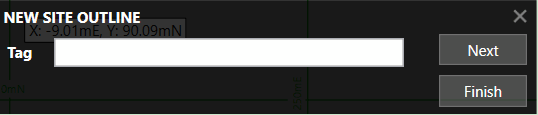
You can define a Tag for the Outline if you wish. Click 'Next' to draw another Outline, or 'Finish' to stop drawing Outlines.
-
Contour Lines
Draw each point of the Contour Line by left-clicking on the designer panel. Finish drawing the contour by right clicking or by pressing the Enter key. The following prompt will appear:
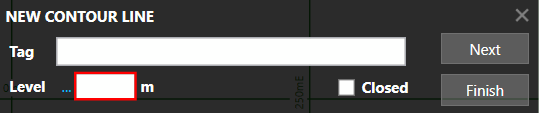
You should type the level for the Contour Line into this prompt. You can also define a Tag if you wish. Lastly, if the Contour Line is a closed loop you can click the Closed checkbox. Click Next to draw another Contour Line or Finish to stop drawing Contour Lines. Note that the '...' before the 'Level' input box can be used to adjust the levels you type. E.g. if all of your levels start from an elevation of 1000 you can click on '...' and input '1000+'. You can then type, for example '26' into levels box and this will be converted into '1026'. This can save time in some take-off scenarios.
-
Break Lines
When you choose to add a break line, you will be prompted to click on the designer panel to define the first point's position. Once you have done this you will see the following prompt.
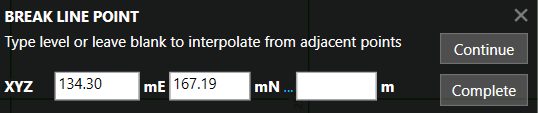
You can define a level (Z) for the Break Line point and can also type precise X and Y values if you wish. If you prefer, you can skip typing the level, and the software will interpolate it. This is useful if you have a detailed break shape where the levels are only defined at a few locations.
If you leave point levels blank, the software will fill them in with the following logic:Click 'Continue' to draw another breakline point or 'Complete' to finish drawing the Break Line. Once you have finished drawing a Break Line, the following prompt will appear:- Wherever the Break Line crosses another line (e.g., a contour) a point will be added to the Break Line with the same level as the crossing line.
- When crossing line points have been added, linear interpolation will be used along the Break Line to fill in any missing levels.
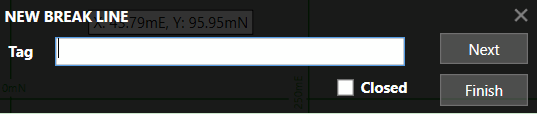
You can also define a Tag for the new Break Line if you wish. If the Break Line is a closed loop you can click the Closed checkbox. Click 'Next' to draw another Break Line or 'Finish' to stop drawing Break Lines.
-
Point Levels
Draw the Point Level by left-clicking on the designer panel. The following prompt will appear:
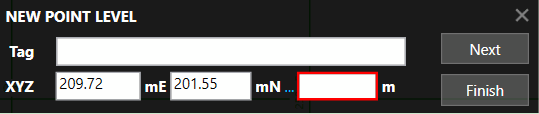
You should type the level for the Point Level into this prompt. You can also type X and Y values for precise positioning. If you wish, you can type a Tag for the Point Level. Click 'Next' to draw another Point Level or 'Finish' to stop drawing Point Levels. Note the comment on 'Contour Lines' above regarding the '...' in front of the level input box.