Setting the Position and Cropping
A site plan is positioned into its real-world location by adjusting it's scale, moving it's position, and rotating the image as required. Alternatively, if you have two known co-ordinates on the image, you can define them, and the software will scale, rotate and move the image to match these two co-ordinates.
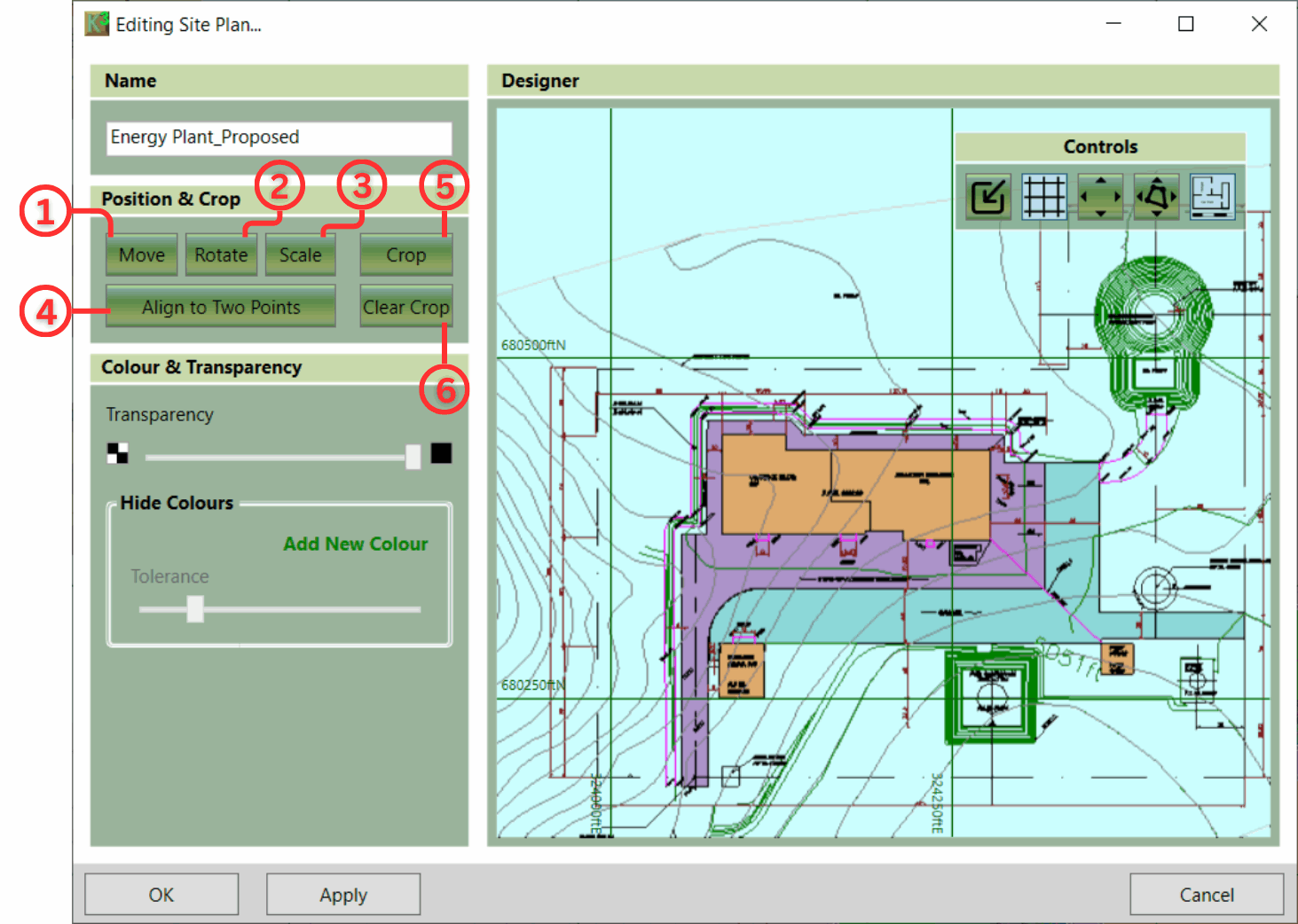
The following controls are used to define the image's position:
- ① Move: Re-position the site plan to a new point or coordinate.
- ② Rotate: Rotate the image to align to a north vertical orientation.
- ③ Scale: By Ratio or by Length.
- ④ Align to two points: Move, Rotate and Scale in one move. Align two known points to real-world coordinates.
- ⑤ Crop: Reduce the size of the site plan and remove any unnecessary information.
- ⑥ Clear Crop: Set the site plan back to the original size.

|
Two informative videos: Scale, Rotate, Move covers scaling techniques like 'By Length' and relative positioning. Cropping, Colours and Transparency explains how to remove unwanted site plan imagery. |