Scale
Scale a PDF or Image file.
You can do this with one of two methods.
Select 'Scale' then select the option you wish to use ('By Ratio' or 'By Length')
- 'By Ratio' (PDF only):
-
Specify the new scale
Type the new scale for the PDF, such as 1:100, or 1"=25'. Click OK to complete the scale.
--OR--
-
Specify the new scale
- 'By Length': Specify a length on the image and then type its length in the real
world. This option is particularly useful if you have a defined length on your
image. E.g. a scale bar or a marked dimension.
-
Draw a line along a scale guide or any other known length
Draw a line on the preview to define your reference length. Left-click once to start drawing the line and a second time to finish.
-
Enter the new length
Type the value of the length you want the reference length to be scaled to.
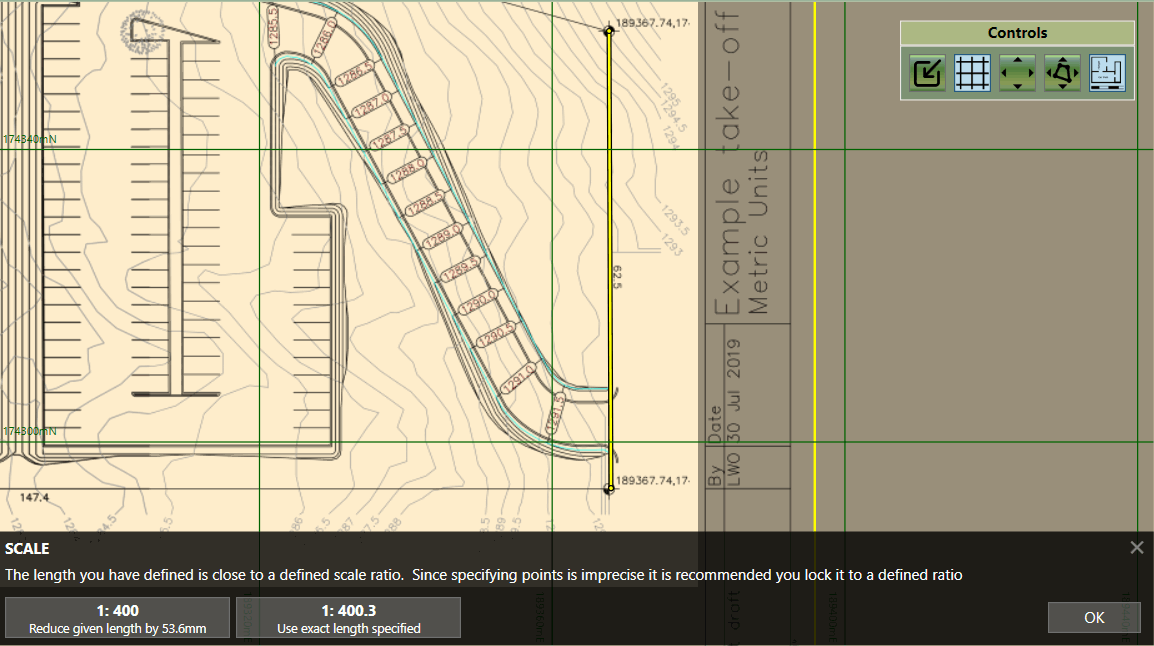
- Defined Scale Ratio
The on-screen prompt will state: "The length you have defined is close to a defined scale ratio". Now choose to scale by an exact length or keep the exact length you specified.
-
Draw a line along a scale guide or any other known length
Scaling a CAD file
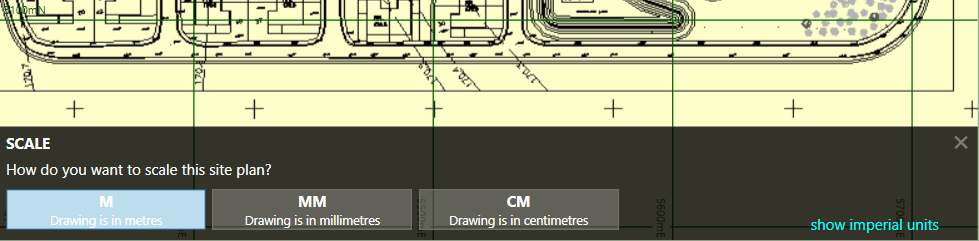
CAD files are automatically imported to the scale they are created. However, there are occasions when the file imports in diffferent units to the ones you require.
Select 'Scale' and then choose the unit you want to scale the site plan in.