Calculate the Volume of the Stockpile - Platform
With the existing surface now complete, you can move to the 'Proposed 1' tab to create a 'Platform' and calculate the volume. This is the recommended method when using the Lite version of the software, where the Feature Surface element is not available. For the preferred method in Kubla Cubed Professional, see the Feature Surface section.
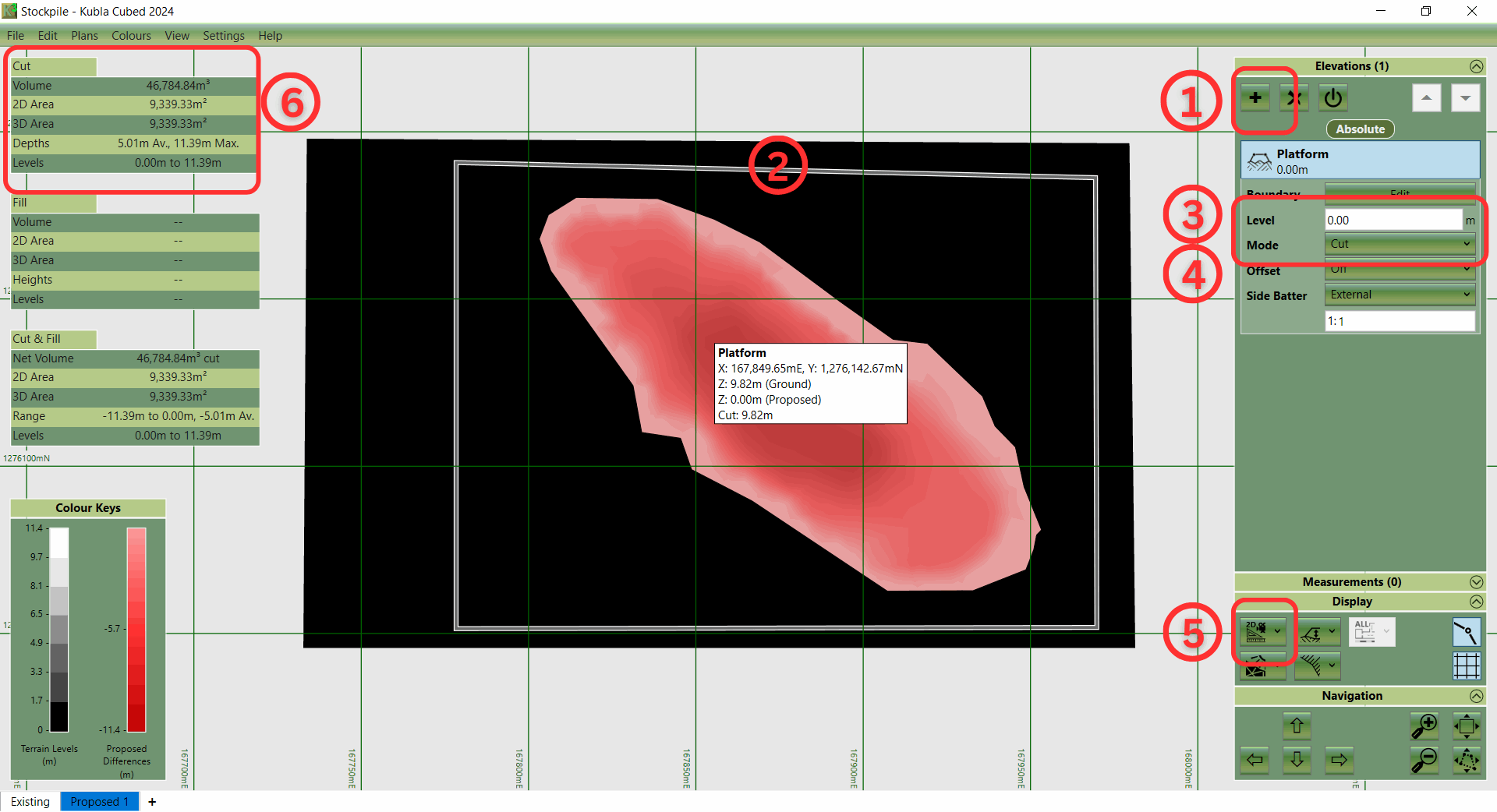
- ① Add a 'Platform' by clicking on the '+' button in the Elevations menu.
- ② Use your cursor to draw a boundary around the stockpile base, and click 'OK'.
- ③ In the 'Elevations' panel, adjust the level of 'Platform' to match the average elevation level at the stockpile base.
- ④ Change the 'Mode' to 'Cut' only.
- ⑤ Using the 'Display' panel options, observe the 2D and 3D visualisations of the stockpile cut.
- ⑥ 'Cut' volume total is displayed.
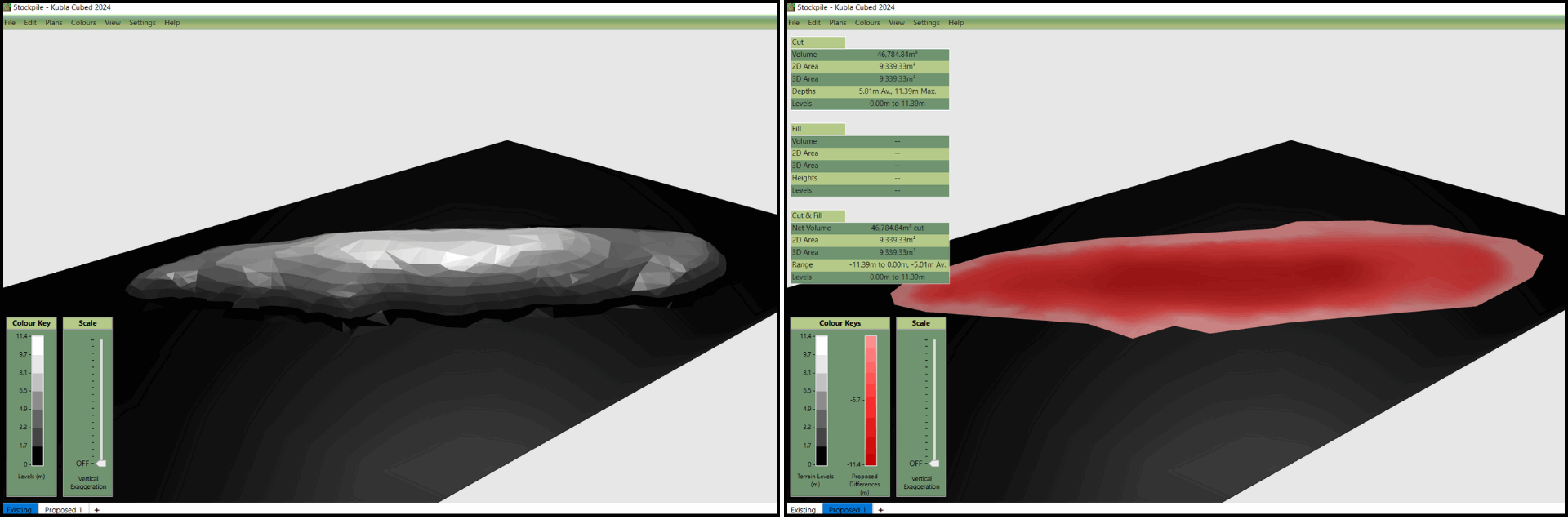
In this scenario, the survey data of the stockpile serves as the 'Existing' surface, while a flat area is designated as the 'Proposed' surface. We are instructing the program to calculate the 'cut' volume, representing the excavation needed to achieve a specified level and perimeter for the stockpile. After defining the stockpile elevations in the 'Existing' phase, they are adjusted to the Platform level. As a result, the cut volume, indicating the volume of material to be excavated from the stockpile, can be found in the top left-hand corner of the interface and in the export reports, and spreadsheets.

|
See how to calculate stockpile volumes in this video: How to Calculate Stockpiles with Free Software. |