The Measurements Panel
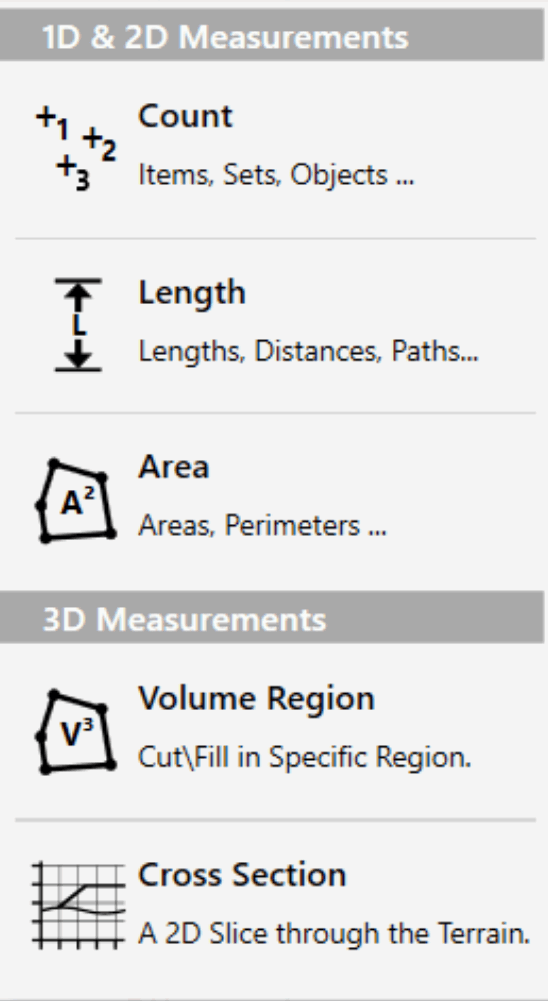
Each phase in a project contains a measurements panel. This is where additional measurements, such as counts, lengths, areas and cut\fill in specific regions, can be added to the project. There is no requirement to add any elements to the measurements panel as a lot of data is reported in the standard report. However, some supplementary measurements are often required in addition to the standard information.
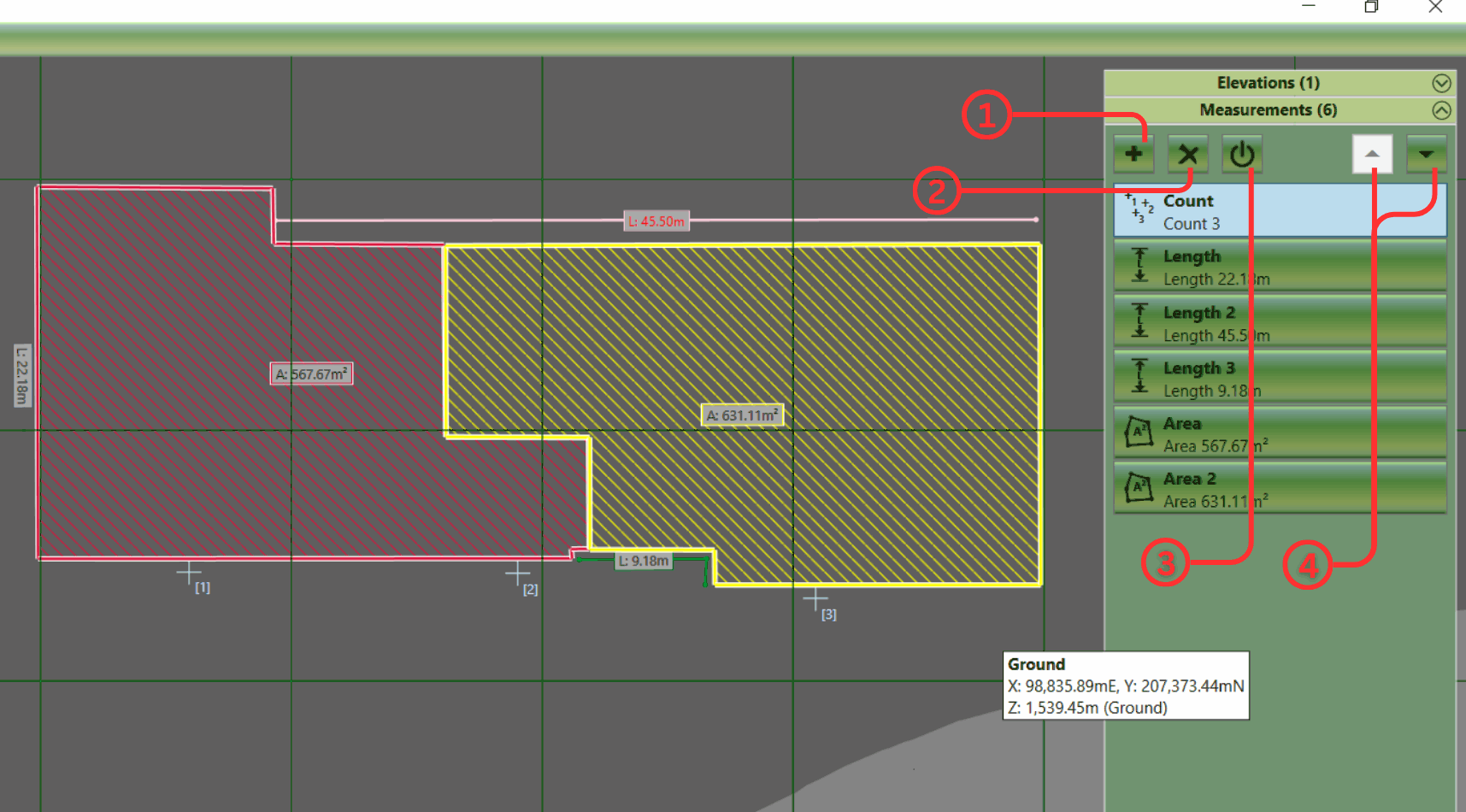
Measurements Element Panel
① Add new element - This opens the Element Menu.
② Delete an element - deletes the selected element from the project.
③ Disable and Enable an element - excludes or includes the element from the volume calculations.
④ Move an element - the arrows move the elements up and down the order.
Adding Elements
|
|
When you have selected an element, you will be able to start drawing its boundary, centreline, or points in the design area. Left-click to place a new point, right-click or press Enter to complete the creation of the element. If you want to cancel the operation entirely, hit Esc key. When adding new elements, the back space key can be used to undo the last placed point if a mistake has been made.
Renaming Elements
After creating an element, it is a good idea to give it a relevant name so it can be identified in the report (e.g., 'boundary fence' or 'flower bed'). To do this, just double-click on the name of the element and then type over it.
Editing Elements
- Selection : Elements can be selected by left-clicking on the title bar in the earthworks panel or by left-clicking on a elements boundary or centre lines in the design area. Multiple elements can be selected by holding down Ctrl while making the selection. To deselect an element, you can right-click on it.
- Edit Mode : If you double-click on an element it will enter into 'edit mode', and the properties of the element will be exposed. You will be able to edit the definition points of the element in the design view. To exit 'edit mode'; double left-click in empty space in the design view.
- Definition Points : When an element is in 'edit mode', the definition points of the boundary or centreline can be changed. In the design view, left-click on a point and drag it to the desired position. A point can be deleted by using the Delete key. New points can be inserted by selecting a line and hitting the Z key. Points can also by edited directly in the point list in the element properties. Clicking on the top-left corner of the point list allows all the points to be copied using the menu command or Ctrl+C. Likewise, a list of points can also be pasted into the point list from another program by clicking on the top-left corner and using menu paste command or Ctrl+V.
- Notes on Point Snapping : When creating or editing the definition points of a measurement element, it is possible to snap the points to other element definition points or to defined grid positions. To access the point snapping options, click on the Edit menu and then the Snap Points. Here, you can toggle snapping to boundary points and grid points, as well as setting the interval and origin point of the grid used for snapping.
Properties
For information on the individual element properties, refer to the relevant sections for each element.
Amending the Order
Copying & Pasting
It is often useful to copy and paste elements; this can be done using Edit menu commands or the keyboard shortcuts (Ctrl+C, Ctrl+V). You can copy and paste in the same phase to duplicate an element or copy and paste to move elements to different phases. See, Copy and Paste.
Deleting Elements
Elements can be deleted by first selecting them and then clicking on the 'X' button at the top of the panel ② (image above).
Disable and Enable Elements:
|
|
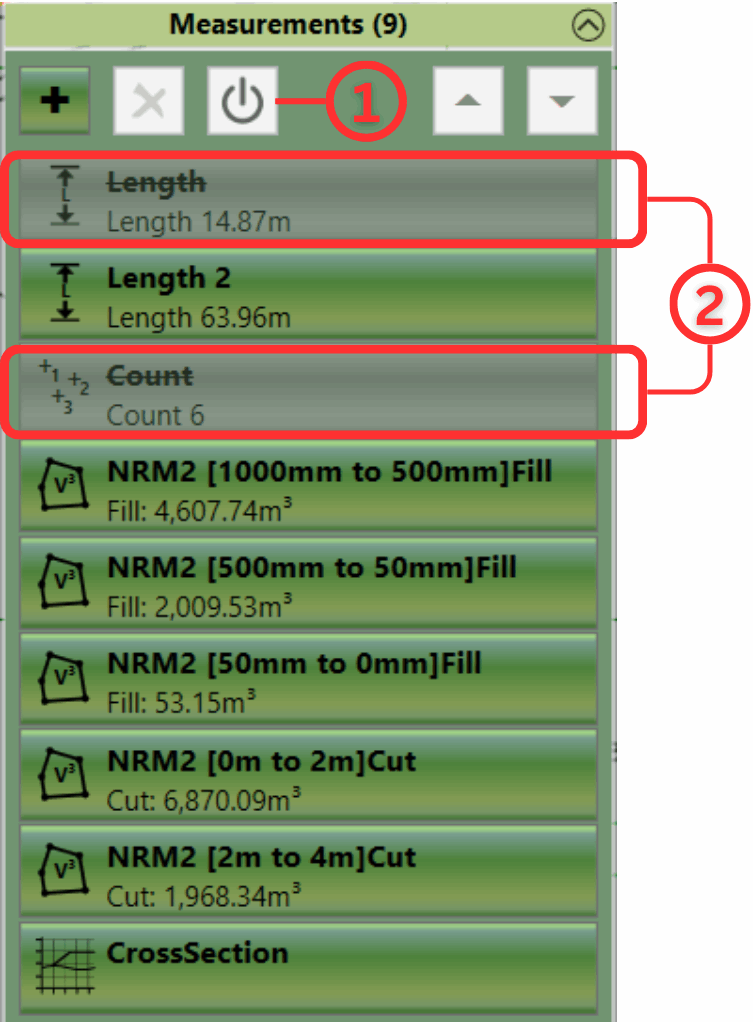
Measurement Elements can be toggled between enabled and disabled by first
selecting them and then clicking on the power symbol button at the top of the panel ① (left). Disabled elements are greyed out and
have their names struck through ② (left).
|