Overview
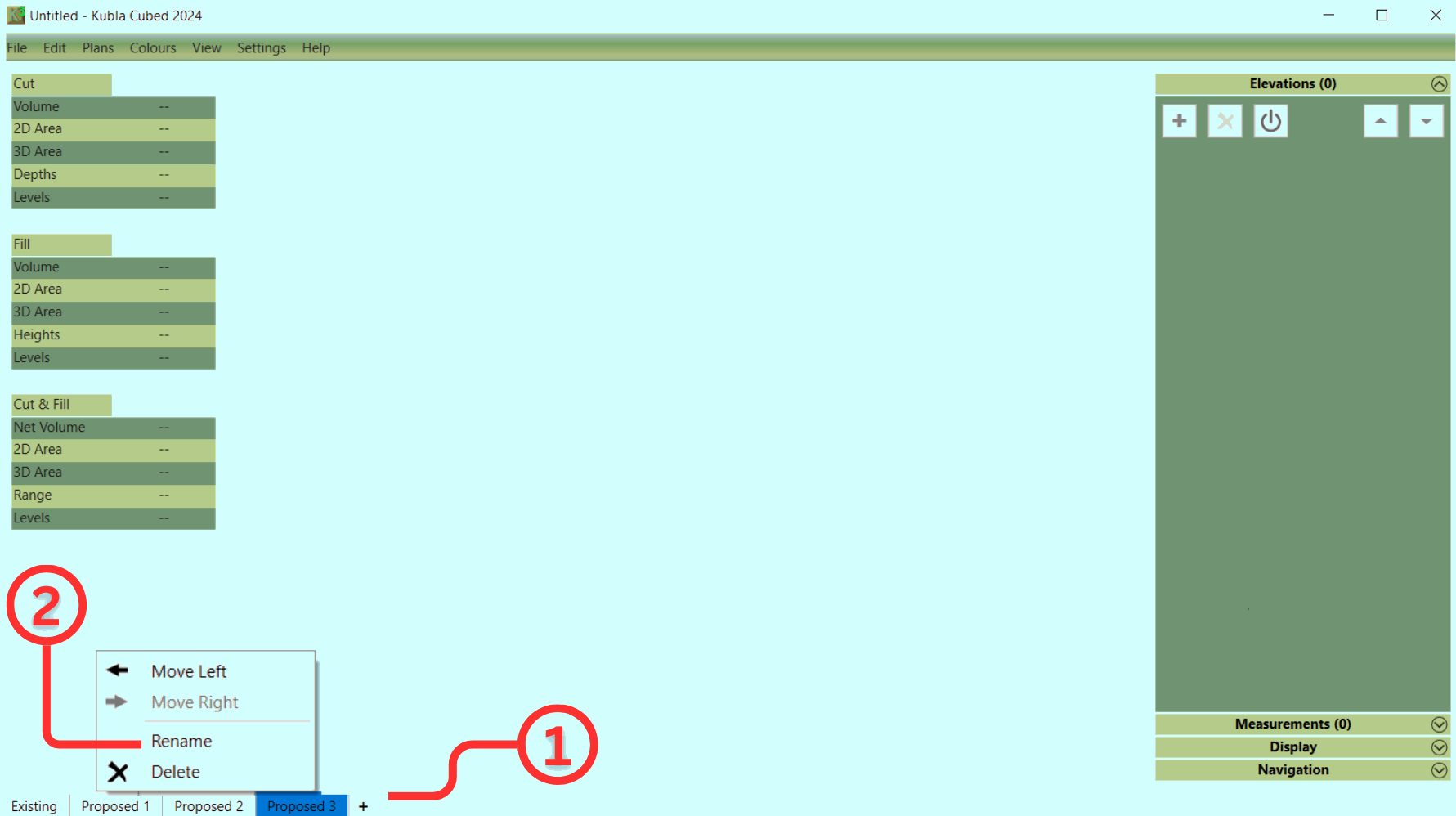
In Kubla Cubed the tabs ① that run along the bottom of the screen are referred to as 'construction phases' or just 'phases'. Elevation and Measurement elements that you create will be added to the selected phase only, the volumes shown on the screen relate to the selected phase only rather than an accumulation of all volumes in the project.
The first phase always contains the existing ground, any number of subsequent proposed phases can be created.
There are two main reasons to create more than one proposed phase:
- It allows earthworks volumes and measurements to be separated into logical sections (e.g topsoil, bulk earthworks, paving).
- It allows a new set of calculations to be completed using the proposed elevations of the previous phase as the new ground.
The second item is particularly important. Consider a backfill operation: in the first proposed phase you define a trench (Phase 1) which cuts into the existing ground and in the second proposed (Phase 2) you fill the trench in.
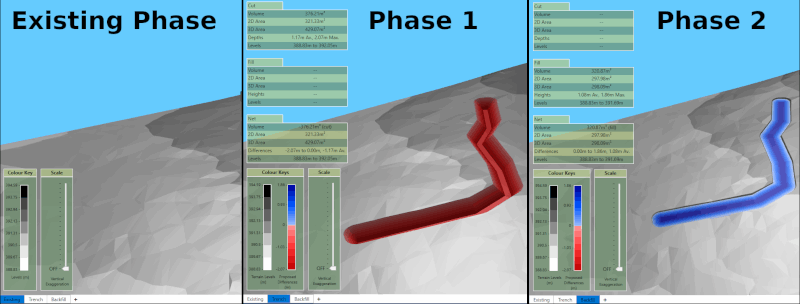
In Kubla Cubed, each phase conducts calculations on two surfaces: a ground surface (derived from the previous phase) and a proposed surface (defined with earthworks elements). Within a single phase, there is no way to calculate backfilling the trench because placing earthworks over the trench would overwrite that section of the proposed rather than calculate a separate 'fill' volume. Earthworks elements within a single phase are combined to create a single proposed surface; they do not produce cut\fill volumes from intersecting with each other.
Instead, in this scenario, we must create another phase, effectively baking the result of the trench cut into the ground of the next phase. The ground of the new phase will inherit the proposed from the previous phase, so it is now possible to calculate backfilling the trench as part of a separate operation. Other common scenarios that require this approach include the completion of topsoil stripping or demolition before iniating bulk earthworks.
To add a new construction phase, click on the + button ① and type a name for the new phase. If you want to delete or rename a construction phase, right-click on the tab, and a menu will appear ② with these options.
To move a phase one place left or right, you can use the right-click menu. You can also drag and drop phases by pressing the left mouse button down on a phase and moving the pointer to the new position while keeping the mouse button down until it's in the drop position.

|
In our video Understanding Construction Phases & Calculation Order, we discuss two critical concepts crucial for mastering the program. |